It’s Friday afternoon and your manager wants a status update on three projects. You open the tracker, click through a dozen tasks, cross reference a Slack thread, then start typing a summary you’ll rewrite twice before it sounds clear. An hour goes, and you haven’t actually moved any work forward. You’ve just described it.
That hour is exactly the kind of thing software should handle now. If you run projects for a living, or you got handed one and you’re figuring it out as you go, knowing how to use AI for project management can hand you back a few hours every week and, more usefully, catch problems while they’re still small.
The catch is that AI is great at the describing and terrible at the deciding. Get that line right and it becomes the best assistant you’ve ever had. Get it wrong and you’ll ship a confident status report full of things that were never true. Here’s how to use it well.
What AI can actually do for a project
Strip away the marketing and modern project tools do a handful of things genuinely well. They read across your tasks, messages, and documents and pull the scattered pieces into one place. They turn that mess into a plain summary. And they notice patterns a busy human skims past, like a task that keeps slipping its due date.
In practice that lands in four buckets: planning the work, reporting on it, spotting risk early, and grinding through the small administrative stuff. A good AI feature can compile a stakeholder ready status report in under a minute, work that used to eat a real chunk of the week. Teams that lean on it for reporting commonly save three to five hours a week per manager.
None of that replaces the judgment part. The tool surfaces options and drafts. You still decide what’s true, what matters, and what to do about it.
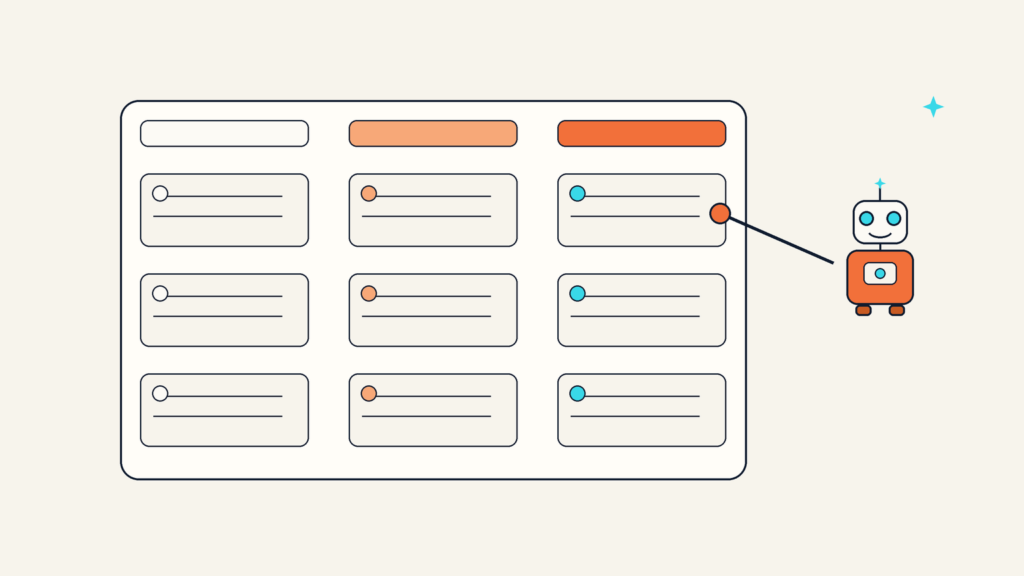
How to use AI for project management, step by step
You don’t need a new platform to start. If your team already uses a tracker with AI built in, or even just a general assistant like ChatGPT or Claude, you can work through this today. Here’s the workflow that actually holds up.
1. Plan the project and break the work down
Blank page paralysis is real, and this is where AI earns its keep fastest. Describe the project in plain language: the goal, the deadline, who’s involved, and any hard constraints. Then ask it to draft a task breakdown with rough sequencing and dependencies.
What comes back is a starting scaffold, not a plan. It’ll miss things only you know, like the client who goes quiet every August or the one teammate who has to review everything. Treat the draft as a first pass you edit hard, and you’ll skip the worst part of kickoff while keeping the parts that need a human.
2. Draft status updates in minutes
This is the single biggest time win. Point the AI at your task data and ask for a short update written for whoever’s reading it. Executives want two sentences and a risk flag. Your working team wants the specifics. Same underlying facts, different summary, both drafted in seconds.
The rule that keeps you safe here: read every generated update before it leaves your hands. AI writes false things with total confidence, so a “we’re on track” it produced might be stitched together from stale task statuses. You’re signing your name to it, so you check it.
3. Spot risks before they blow up
Here’s where AI does something a spreadsheet never could. Ask it to look across the project and name what might go wrong. Feed it the scope, timeline, dependencies, and who’s doing what, and it’ll list risks you can then judge.
Some tools go further and watch for trouble on their own, flagging a budget line drifting over or a task that has slipped its date three times. A few claim to warn about likely delays a couple of weeks out by comparing your current pace against how similar work went before. Useful as an early nudge, as long as you remember it’s a prompt to look closer, not a verdict.
4. Keep the busywork moving
The small stuff adds up: rewriting a vague task into a clear one, drafting a meeting agenda from last week’s notes, turning a long thread into three action items with owners. Hand all of it to AI. This is low risk work where a wrong draft costs you nothing but a quick edit, and it clears space for the parts of the job only you can do.

The tools worth trying
Most of the big trackers now bake AI right in, so the honest answer is to start with whatever your team already pays for before you go shopping. If you want a sense of the going rate, here’s roughly where the entry AI tiers land.
ClickUp folds its assistant into paid plans starting around 7 to 11 dollars per user each month, with an agent layer that can act across your workspace. Asana switches on its AI features at its Starter tier, about 11 dollars per user monthly billed yearly. Notion bundles its full AI suite into the Business plan at roughly 20 dollars per user monthly, so you’re not paying a separate add on. Microsoft’s Project Copilot leans into Teams and the wider Microsoft world, and monday.com offers AI for status updates, risk flags, and workload balancing.
Across the board, most teams land near 10 to 15 dollars per user a month for AI features that actually pull their weight. For a fuller comparison of options built for planning and roadmaps, see our guide to the best AI tools for product managers, and if any of the jargon trips you up, the plain English AI glossary has you covered.
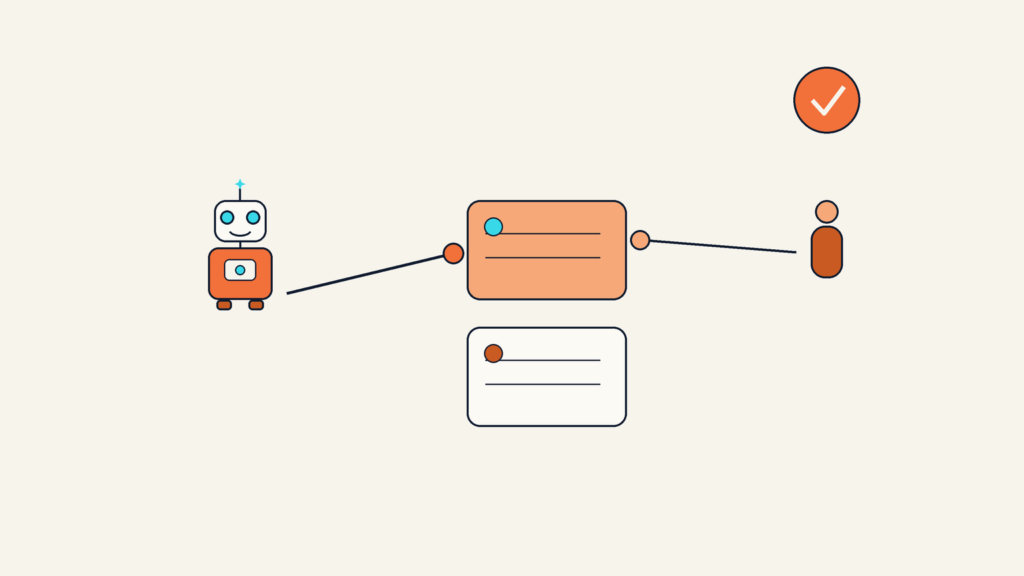
The human checkpoints AI can’t replace
This is the part most guides skip, and it’s the whole game. AI can draft the plan, but it can’t feel that your client is losing confidence. It can list five risks, but it can’t decide which one is worth a hard conversation today. It can summarize a tense meeting, but it can’t read that two teammates quietly stopped talking.
So keep a few decisions firmly in human hands. Priorities, tradeoffs, people, and anything you’d stake your credibility on stay with you. Let AI handle the drafting and the digging, and reserve your energy for the calls that need a person who understands the room. That split is what separates a PM who uses AI well from one who gets burned by it.
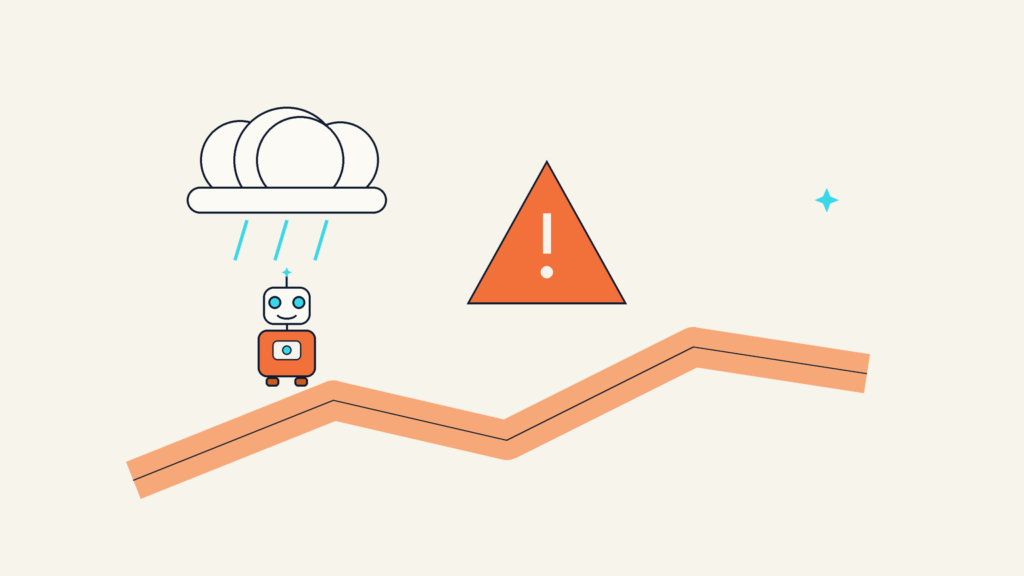
Where AI still trips up
Go in clear eyed. AI only knows what it can see, so if your tasks aren’t updated, its summaries will be neatly written fiction. It has no memory of the hallway conversation where the deadline really got decided. And it defaults to a smooth, agreeable tone, which means it’ll happily report calm waters right up until the project hits a wall.
There’s a data side too. Before you pipe project details into any tool, know where that information goes and whether it trains someone’s model. Client work and anything sensitive deserve a check of the tool’s privacy settings first, not after.
Key takeaways
If you remember nothing else about how to use AI for project management, remember this: let it draft, let it dig, and keep the deciding for yourself.
- AI is strongest at planning drafts, status updates, risk spotting, and busywork, and it can save a manager several hours a week.
- Always read AI generated updates before you share them, because it writes wrong things confidently.
- Its output is only as good as your task data, so keep the tracker current.
- Start with the AI already inside your current tool before paying for anything new.
- Priorities, tradeoffs, and people calls stay human. AI surfaces options, you make the decision.

Frequently asked questions
Can AI run a project by itself?
No, and you wouldn’t want it to. AI can draft plans, write updates, and flag risks, but it can’t own outcomes, read team dynamics, or make judgment calls under pressure. Think of it as a fast, tireless assistant that still needs a manager.
Do I need a special tool, or can I use ChatGPT?
You can start with a general assistant like ChatGPT or Claude for planning, drafting updates, and brainstorming risks by pasting in your project details. Dedicated trackers with built in AI go further because they read your live task data automatically, but a general tool is a fine place to learn the workflow.
How much time does AI actually save on project management?
The clearest win is reporting. Managers who use AI to compile status updates often save three to five hours a week, since a report that took an afternoon can be drafted in about a minute. You still spend time reviewing and editing, but the blank page grind mostly goes away.
Is it safe to put client details into an AI tool?
Check first. Look at whether the tool trains its models on your inputs and what its data settings allow, and keep genuinely sensitive client information out until you’re sure. Many business plans offer stronger privacy controls than free tiers, so read the fine print before you paste.
What should I never let AI decide?
Anything involving priorities, tradeoffs, budgets you’ll defend, or people. AI can lay out the options and the likely consequences, but the actual call, and the accountability for it, belong to you.
This article is general information, not professional, legal, or financial advice. Tool features and pricing were verified on the publish date and can change, so confirm the current details on each vendor’s own site before you buy.